
PDF editing guide & troubleshooting
Change existing PDF text, preserve a matching font and check the exported result. This guide uses a simple, one-page text PDF; it does not demonstrate every PDF format.
Try a real text replacement
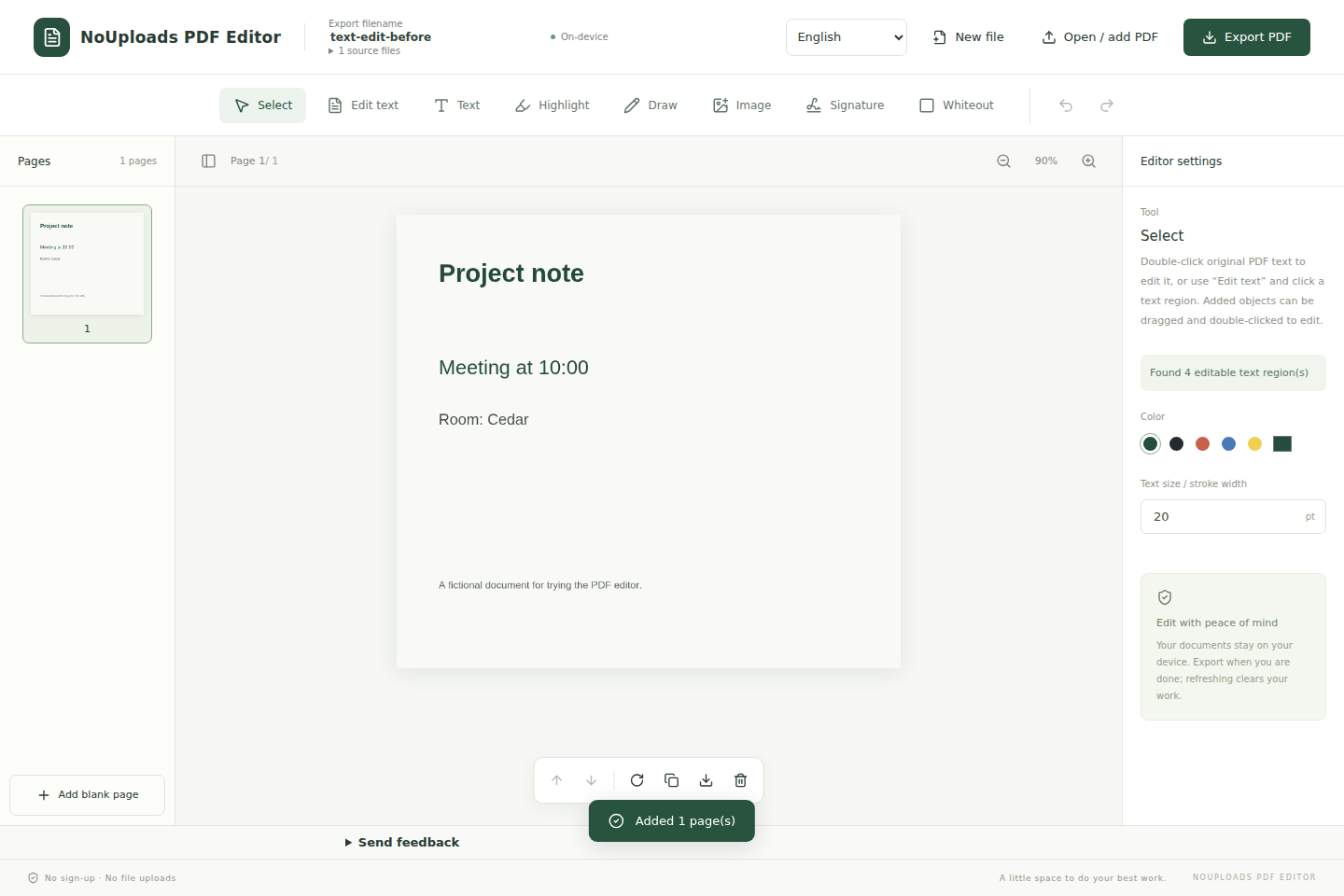
- Download the original example below, then open it in the editor. The document says “Meeting at 10:00”.
- Choose Select and double-click “Meeting at 10:00”, or choose Edit text and click its text region.
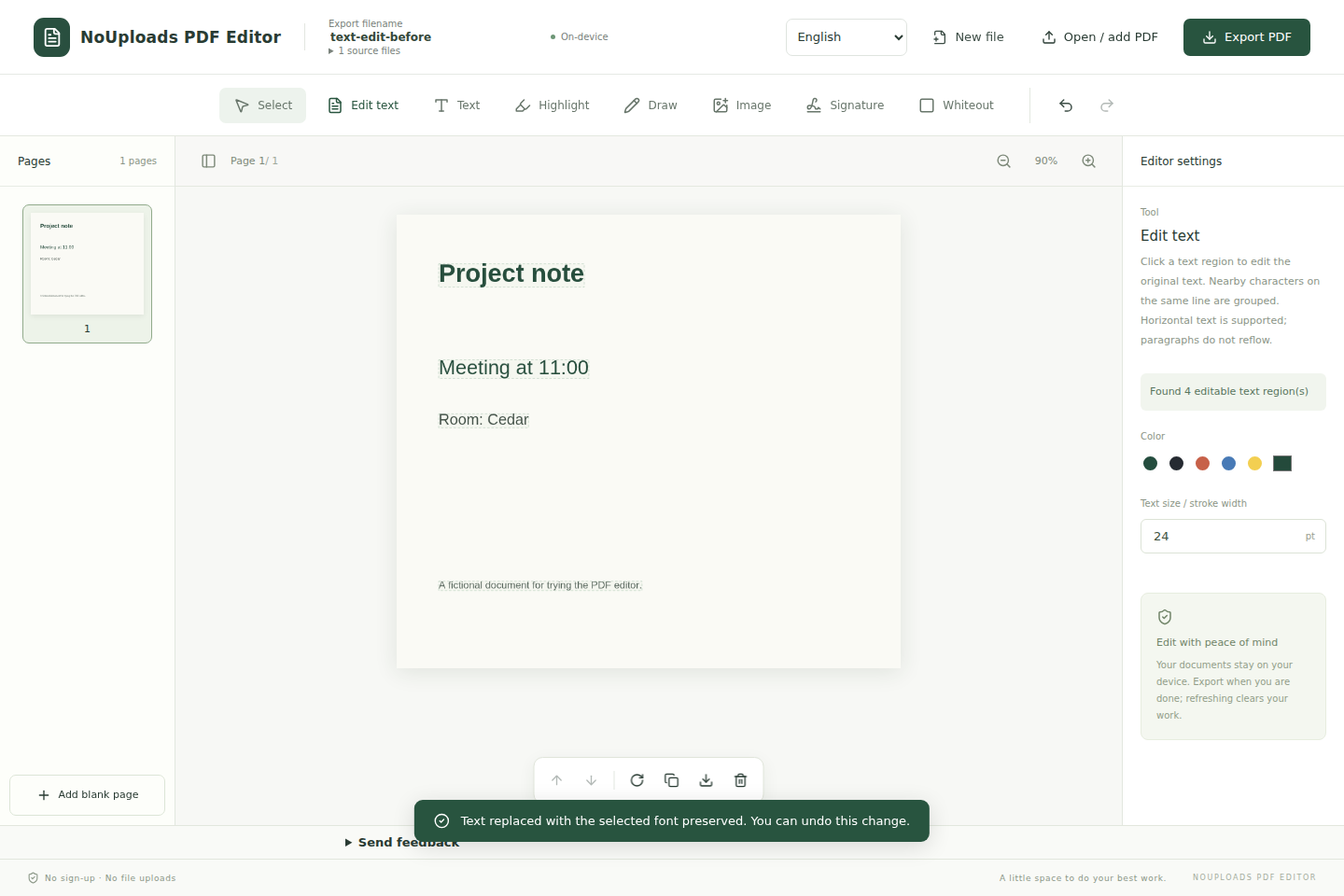
- Replace it with “Meeting at 11:00”. Keep the original font and size, then apply the text changes.
- Export PDF to save a new copy. Open that copy with New file and check “Meeting at 11:00” and the unchanged “Room: Cedar”. The two downloads below let you compare the result.
These screenshots show the English interface and a fictional document. The same steps work in your selected interface language.
Change original text or add a text box?
Editing an original text region replaces supported text in the PDF. The Text tool adds an overlay; it does not change the original text underneath. Added text and handwritten signatures export as images.
Keep the font when characters are missing
Try the original font first. An embedded subset may lack a new character. Optional font lookup searches for a matching name and style; a match may still be a different release. You can load an appropriately licensed TTF/OTF from your device. If no matching font is available, cancel or explicitly choose a fallback and inspect the result. Font lookup is not a guarantee that every font can be found.
Why is Chinese text split into regions?
The editor groups nearby characters when their positions and styles suggest a line. Table cells, different fonts and unusual spacing may stay separate. Double-click the outlined region; change separate regions individually. A replacement must fit its available width; paragraphs do not automatically reflow.
When original text cannot be edited
Scanned pages are images: there is no OCR. Original vertical or right-to-left text, Type3 fonts and some clipping or transparency structures are unsupported. You may still view pages and add annotations. Open unencrypted PDFs up to 100 MB and 200 pages per file. Check a copy before relying on any edited result.
Start a new document or append pages
New file lets you open another PDF or create a blank A4 document. Open/add PDF offers append or replace when a document is already open. Appended pages go at the end. Review the page thumbnails, reorder as needed and choose the export name in the header. Replacing a document clears its editing history; export your current work first.
Signatures, white covers and saving
Handwritten signatures are images, not certificate-based digital signatures. A white cover is not secure redaction and may leave content recoverable. Editing can invalidate existing digital signatures. Export before closing or refreshing: the editor does not keep a saved copy for you.